
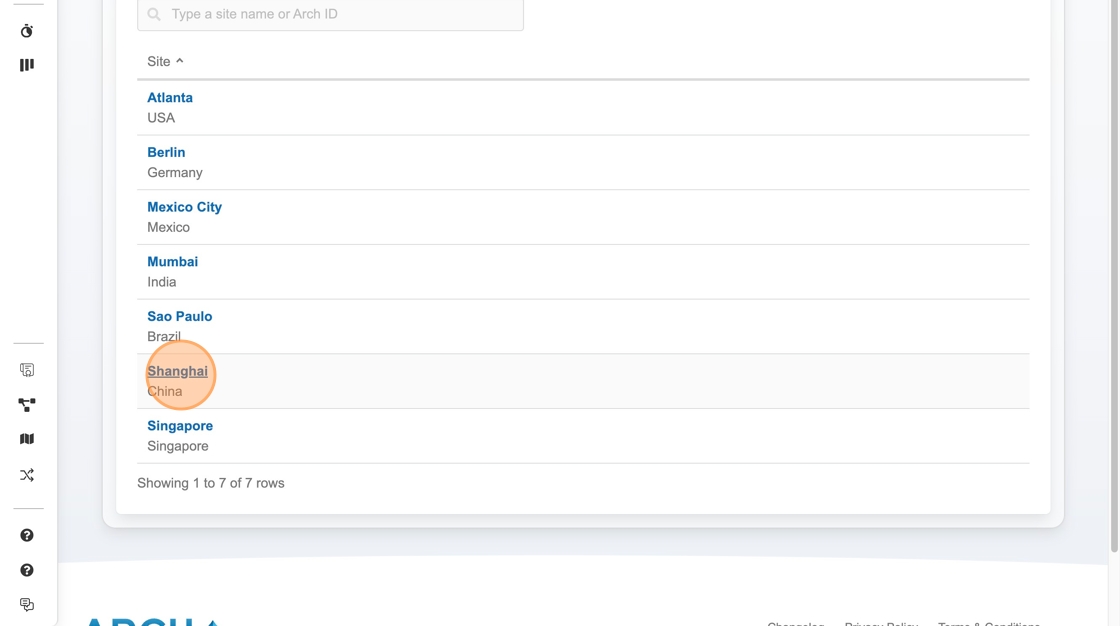
1. Navigate to React. Click into the desired Site and Area. In this example, jobs are created in Shangai site > 'SMT' area.
2. Hover over the tools icon to view the 'Import' option. Click 'Import'.
style="border-left:4px solid #f4b400;background:#fff8e1;padding:12px 16px;margin:20px 0;border-radius:6px;"

3. Click "Download template" if you do not already have a template.

4. Open the CSV template in Excel, Google Slides or another CSV editor. Add all the job and part information.

Which fields are required?
- [Mandatory] Line Name: String (must match Factory Map)
- [Mandatory] Job Name: String
- [Optional] Product Part Number: String (must match Product Map)
- [Optional] Step: String (must match Product Map)
- [Mandatory] Target Quantity: Integer
- [Optional] Takt Time: Float (default assumed if not provided)
- [Optional] Downtime Threshold: Float (default assumed if not provided)
- [Optional] Boards per panel: Integer (default assumed if not provided)
- [Optional] Tags: String
- [Optional] Machine Name: String Float (default assumed if not provided)
5. Click "Choose a file" to upload edited CSV template.

6. Click "Confirm selection and continue"

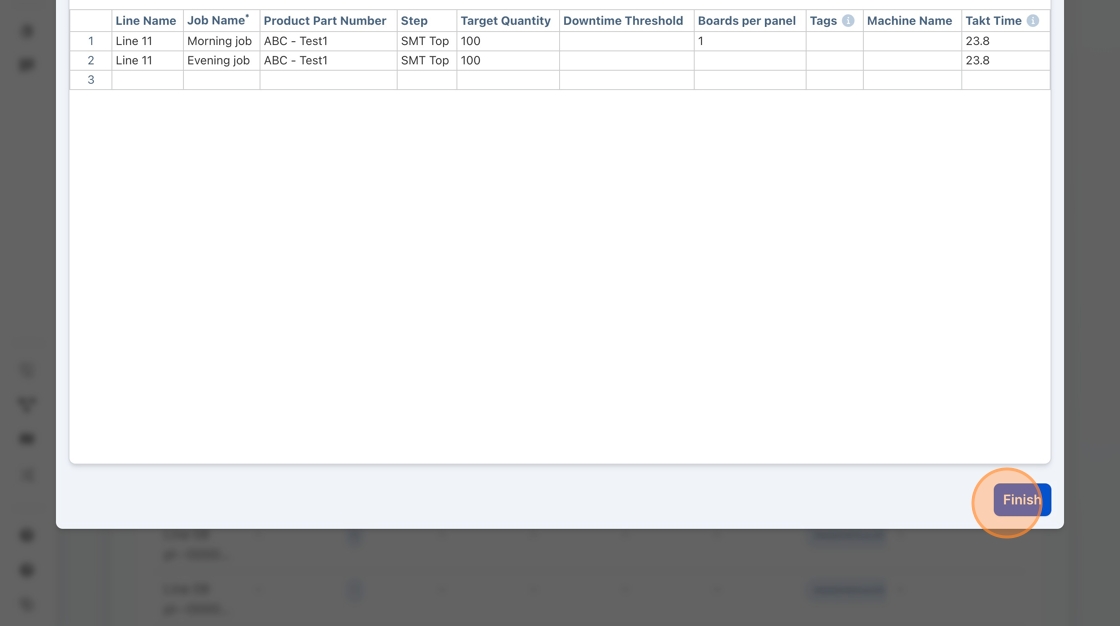
7. Review that the import shows jobs are expected.

8. Click "Finish" > 'Yes'.
9. Check if the jobs were imported successfully. Click into the line where the jobs were added.

10. Click into the 'Run/Jobs' to view current and future jobs.

11. View newly uploaded jobs until 'Pending Jobs'.

Comments
0 comments
Please sign in to leave a comment.